Panel reference
Job Status panel
What's happening during a print
Where Appears automatically when a print startsControls 7
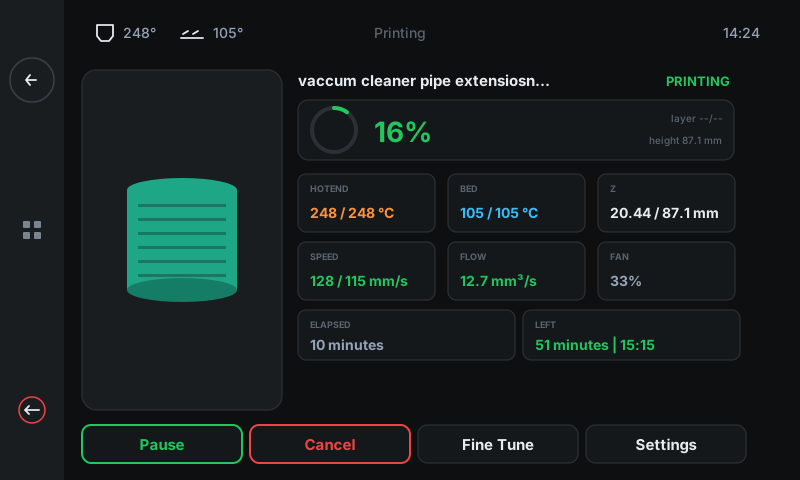
The Job Status panel is the single dashboard for an active print. Progress, live temperatures, mechanical rates, time remaining, layer count — all on one screen, updating once per second. The bottom action row gives you Pause / Cancel / Fine Tune / Settings without leaving the panel.
 1234567
Filename + state badge
Currently printing file + state.
The print's filename (ellipsized when long) on the left, with a state badge on the right that shows PRINTING (green), PAUSED (amber), or COMPLETE (green) depending on what's happening.Progress card
Big % + circular ring.
Visual progress ring around the central percentage. Green = printing on schedule. The layer / height column on the right shows current layer of total + the model's printed height in mm.Hotend / Bed / Z cards
Live actual / target temps + Z.
Three cards: HOTEND (orange) and BED (blue) showcurrent / target °C— the number goes green when at target. Z shows the toolhead's height + the model's total height.Speed / Flow / Fan cards
Live mechanical rates.
Three more cards showing the toolhead's actual speed vs. the slicer's commanded speed (in mm/s), the volumetric extrusion flow in mm³/s, and the part-cooling fan as a percent. Useful when you've made a live tune in Fine Tune and want to confirm the printer is following.Elapsed + Left
Time tracking.
How long the print has been running so far, and a live estimate of how much longer it has. The 'Left' card also shows the wall-clock time the print is predicted to finish.Part preview
Slicer thumbnail.
The slicer-generated thumbnail of what's printing. Tap to view full-size — useful when you've started a print and want to double-check it's the right job.Action row
Pause / Cancel / Fine Tune / Settings.
Pause (puts the print on hold), Cancel (stops it; you get a confirm with optional exclude-object), Fine Tune (live tune — Z offset, speed, flow, etc.; see the Tune live walkthrough), and Settings (less-frequent print controls like save-Z).
Good to know
- Tapping the side-panel Back arrow during a print returns you to the home screen — the print keeps running. Re-open Job Status by tapping the PRINTING banner on Home.
- The action row swaps to Resume / Cancel / Fine Tune / Settings while paused, and to Restart / Main Menu / Save Z when complete.