Panel reference
Print / File browser
Start a print from saved G-code files
Where Home → Print tileControls 3
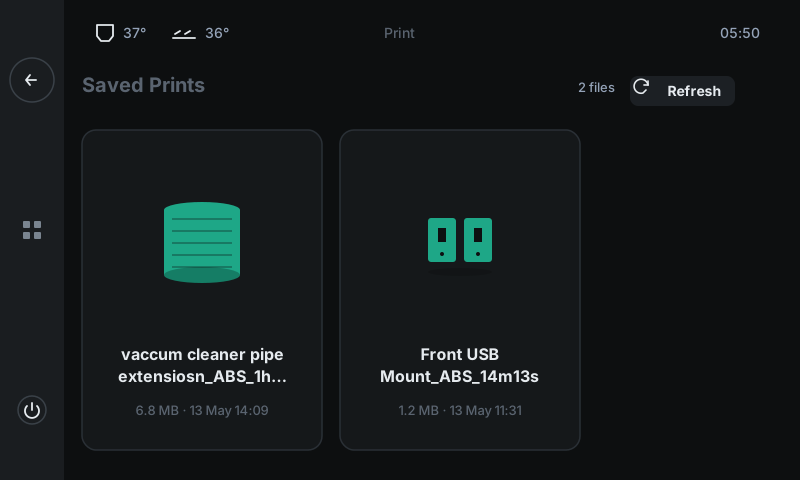
Lists every G-code file uploaded to the printer's storage, sorted most-recent-first. Each file is a card with a slicer-generated thumbnail, name, size, and upload date. Tap a card to start that print.
 123
123Saved Prints header
File count + section label.
Title line. The small 'N files' counter on the right tells you how many G-code files are currently on the printer's storage.Refresh
Re-scan storage.
Use this after uploading a new file from your laptop if it doesn't appear yet. Otherwise files appear automatically when they're uploaded via Moonraker.File card
One per uploaded G-code.
Thumbnail (generated by your slicer), filename (ellipsized when long), size, and upload date. Tap to start. The printer homes, heats to the slicer's commanded temperatures, runs a purge line, then starts the first layer.
Good to know
- Files are uploaded via Moonraker — drag-and-drop from OrcaSlicer / Mainsail / Fluidd, or use the 3DISM Cloud web UI if paired.
- Slice with thumbnails enabled in your slicer — makes picking the right file much faster.