Panel reference
Remote Access panel
3DISM Cloud pairing
Where Home → WiFi · or · More → Remote AccessControls 3
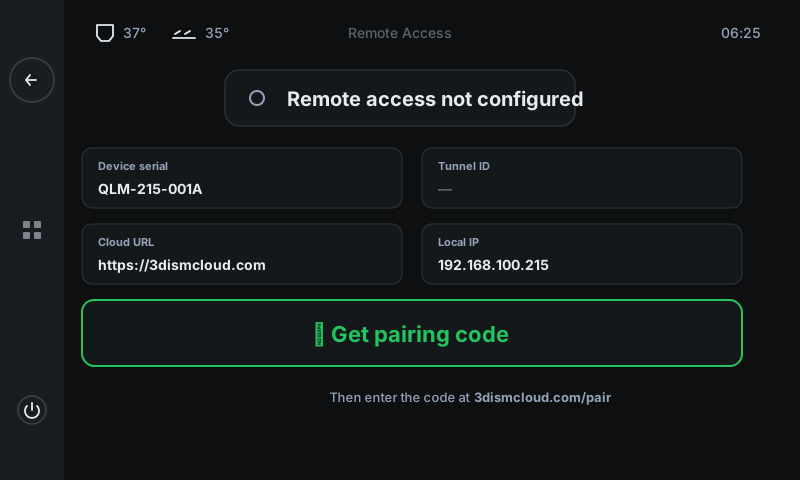
Pair your printer with 3DISM Cloud for email notifications + remote monitoring. The status page shows the printer's identity (serial, IP), the cloud URL, and a single button to start the pairing flow.
 123
123Status badge
Paired or not.
'Remote access not configured' (grey) = no cloud link. 'Paired with you@example.com' (green) = good to go. Tap the badge when paired to unpair.Facts grid
Device + network info.
Device serial (your printer's unique ID), Tunnel ID (set after pairing), Cloud URL (where to enter the code), Local IP (LAN address). Useful for support tickets.Get pairing code
Start pairing.
Asks 3DISM Cloud for a one-shot code and switches to the code page. The code is valid for 10 minutes — type it into 3dismcloud.com/pair on any device.
Good to know
- Cloud pairing is optional — the printer works fully without it. Pair for email notifications and the ability to monitor from a browser.
- The cloud account is free for up to 10 printers per account.