Panel reference
Resume Print panel
Power-loss recovery
Where More → Resume PrintControls 5
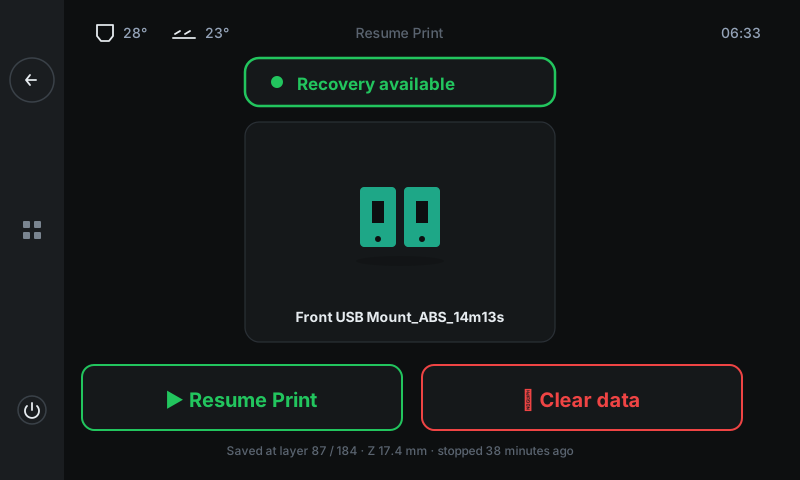
The recovery panel. Tells you whether there's a saved print state in the EEPROM and gives you two clear actions: Resume Print (continue from where it stopped) or Clear data (discard). Always accessible — the green-bordered tile in More opens this panel even when there's nothing to recover (you'll see a grey 'No data' badge).
 12345
12345Status badge
Recovery available or No data.
Green 'Recovery available' means the EEPROM has a complete print state to restore. Grey 'No data' means there's nothing to recover — both action buttons below are disabled.Thumbnail + filename
Visual confirm of what's recoverable.
Slicer thumbnail + filename. Eyeball this before tapping Resume — make sure it's the print you remember running, not some old job.Resume Print
Continue from the saved point.
Re-heats both heaters, re-homes carefully, re-primes the nozzle, then resumes the G-code stream from the saved line. Takes about 90 seconds before motion restarts. You'll see one cosmetic line on the layer where the resume happened.Clear data
Discard without resuming.
Destructive — wipes the EEPROM payload. The print can't be resumed after this. Use only if you've decided to re-slice or print something different. There's a confirm prompt before the wipe completes.Recovery details
Layer / Z / time since stopped.
Sanity-check footer: which layer the print stopped on, the Z height, and how long ago the power was lost. Helps you confirm the recovery point matches what you remember.
Good to know
- Print state is auto-saved on every layer change. Worst-case loss after a power cut is a partial layer.
- Works best on ABS / ASA / PC in a heated enclosure where the part stays warm during the outage. PLA can warp during a long power cut and pull off the bed.