Chapter 01
Repair guides
Step-by-step guides for taking parts of the QALAM apart and building them back. Every step has a photo, and each guide has a short video and a PDF.
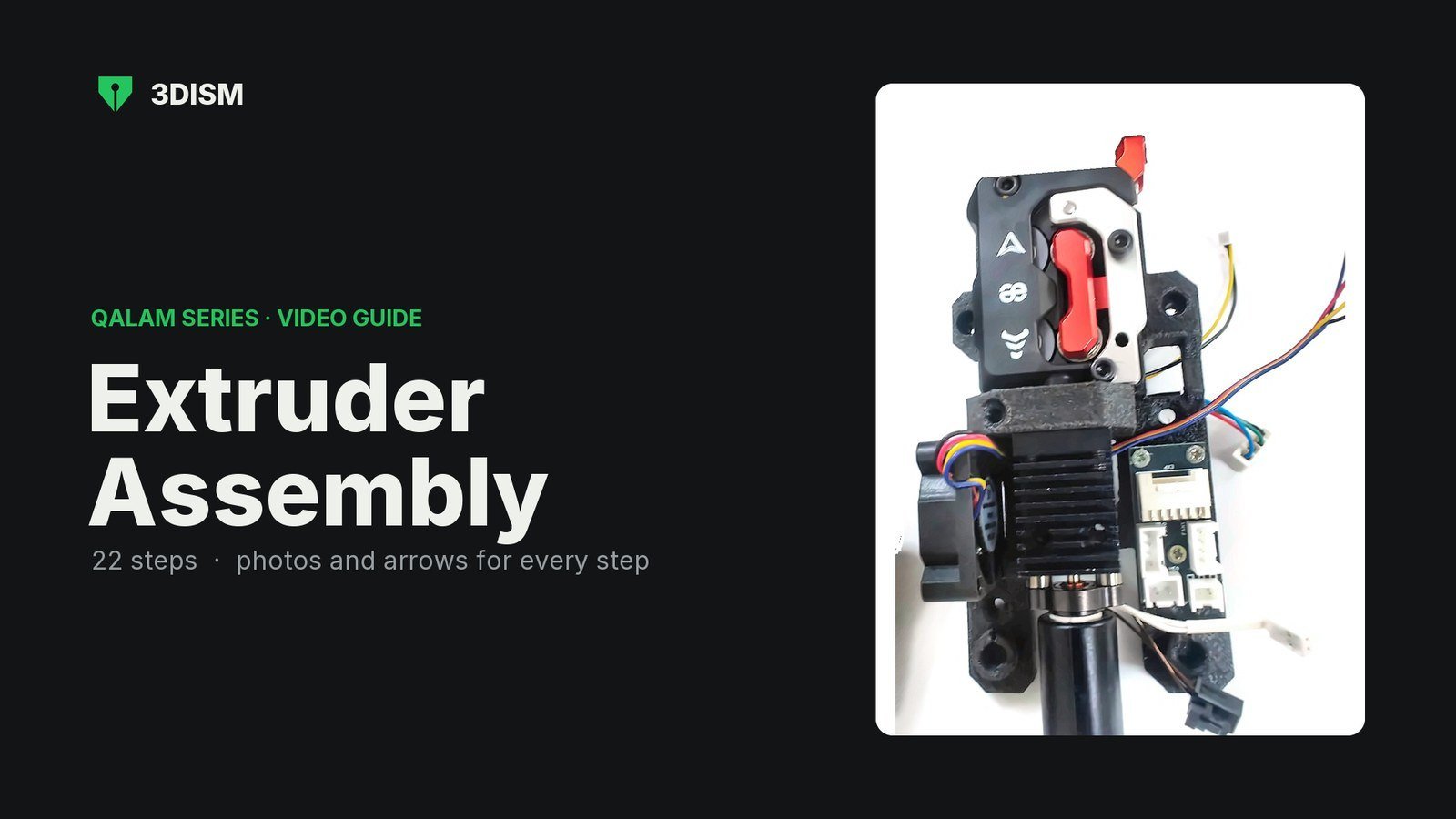
More repair guides for the QALAM series are on the way.
Chapter 02
When something goes wrong
The screen explains problems in plain words and tells you what to do. There are three kinds: the printer stopping (a fault page), a print pausing itself (a red robot), and a single command being refused (a message at the top).
The printer has stopped: the fault page
When the printer stops for safety, Home is replaced by a page explaining why. Controls is locked; Settings and Info still work.
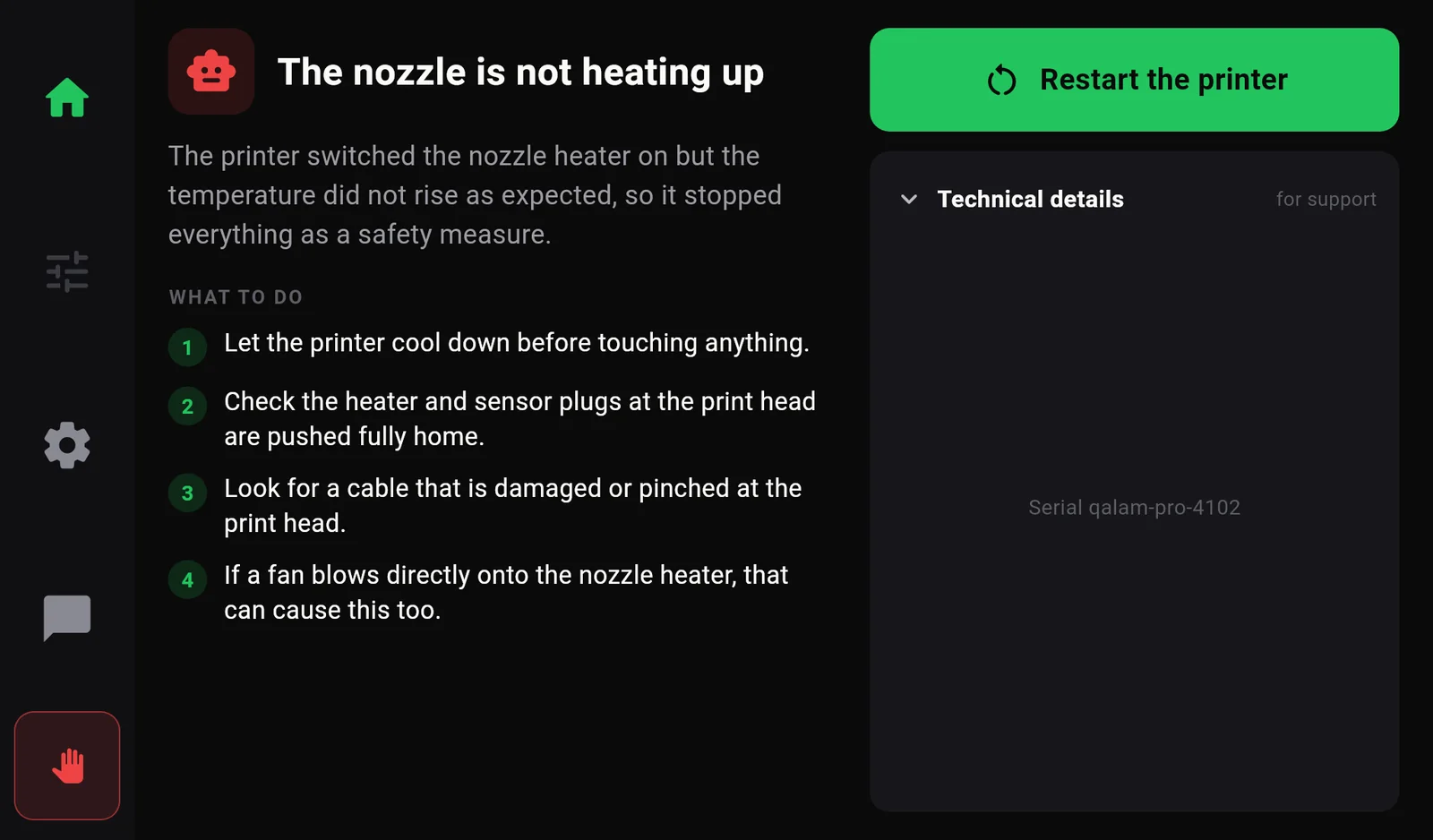
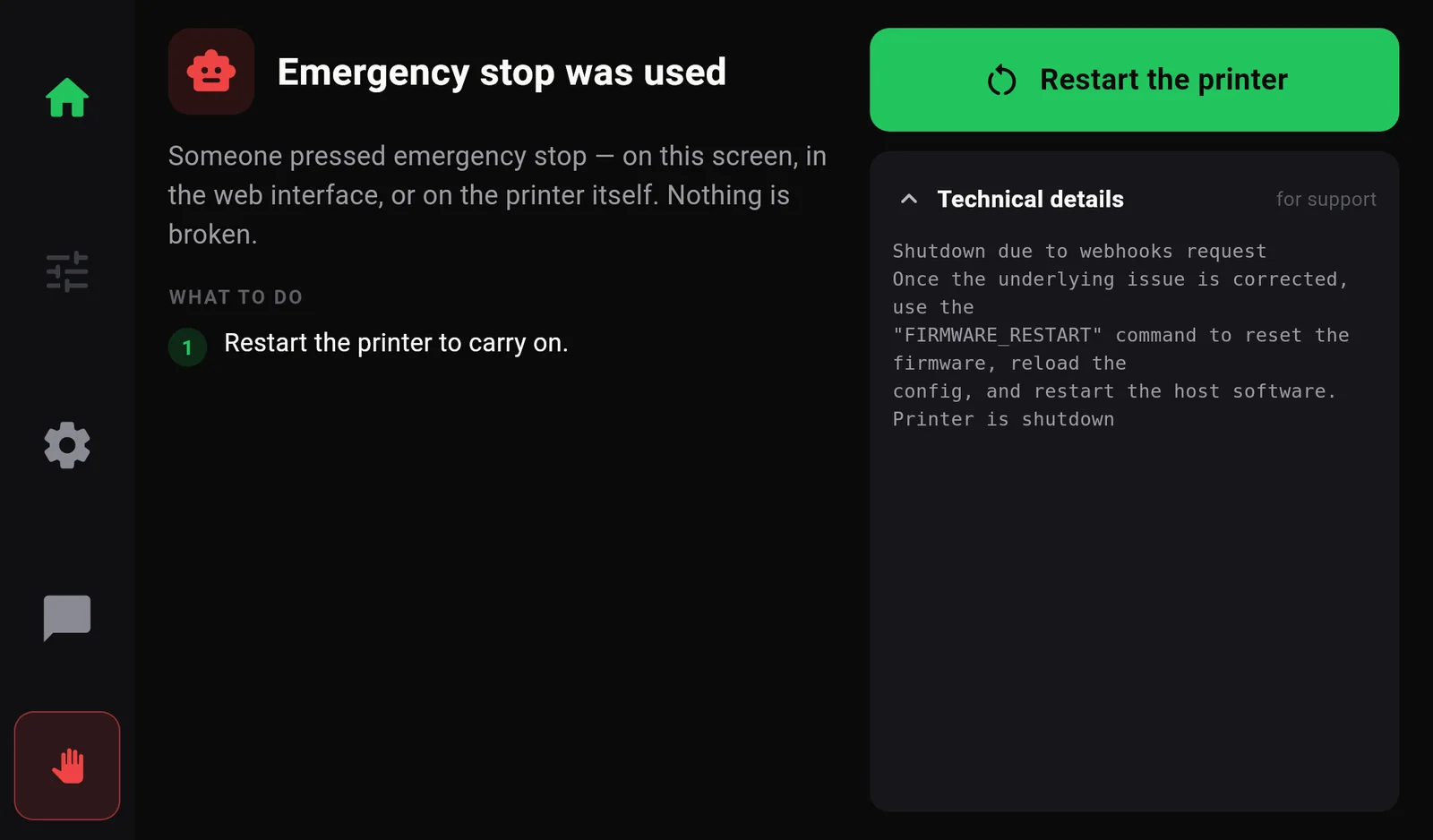
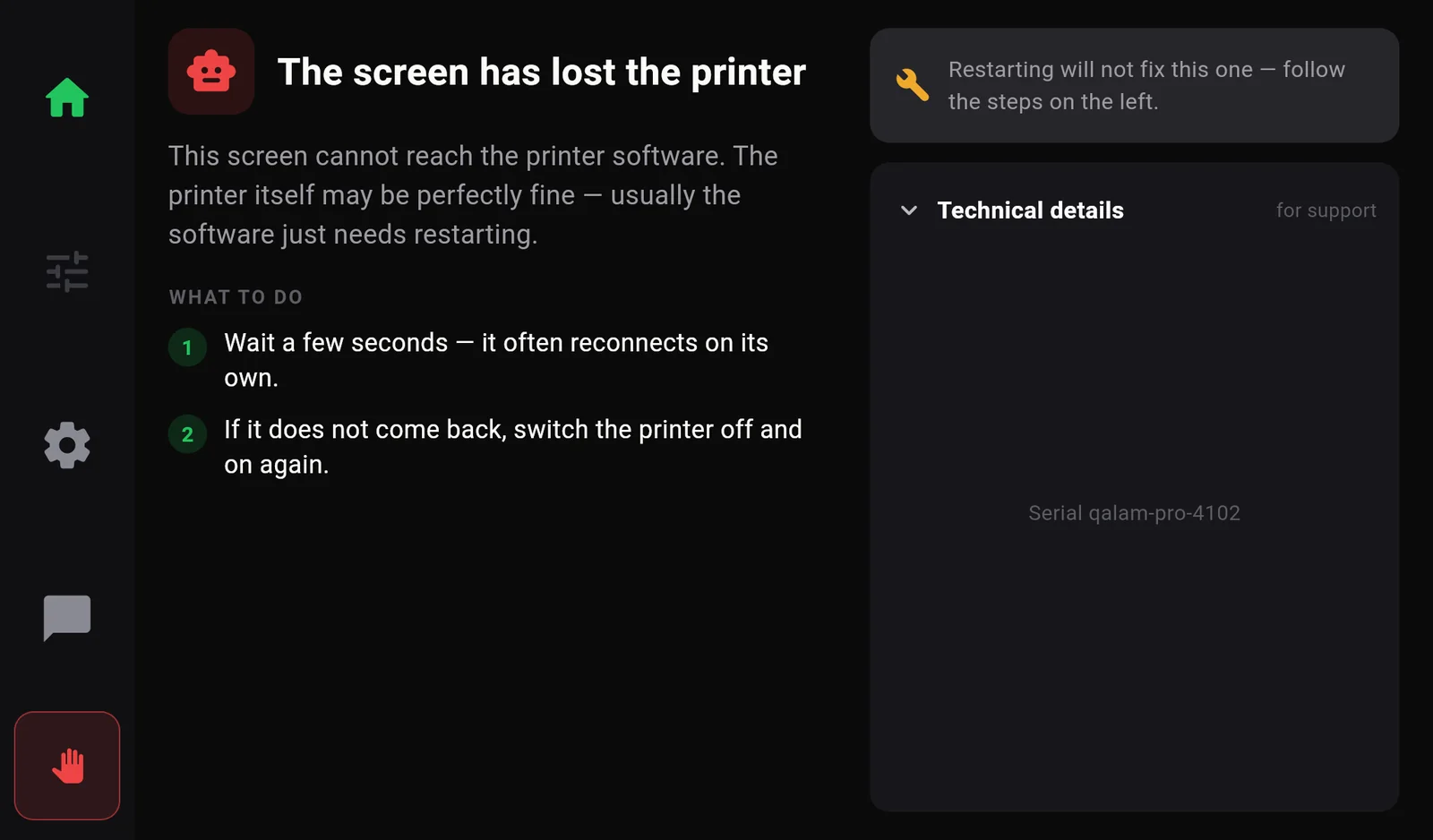
- Title and explanation: what happened, in plain words, naming the part involved (nozzle, bed, print head board…).
- WHAT TO DO: numbered steps. Follow them in order.
- Restart the printer appears when a restart can fix it. Fix the cause first, then press it. If restarting will not help, the page says Restarting will not fix this one — follow the steps on the left.
- Technical details holds the exact message for 3DISM support. Tap to open it.
Faults and what to do
| Title on the screen | What it means | What to do | Restart button |
|---|---|---|---|
| The screen has lost the printer | The screen cannot reach the printer software. The printer itself may be fine. | Wait a few seconds. If it does not come back, switch the printer off and on again. | No |
| The printer settings could not be loaded | A mistake in the printer's configuration file. | Contact 3DISM support with the technical details. | No |
| The nozzle / bed is not heating up | A heater was switched on but did not warm up as expected. | Let it cool. Check the heater and sensor plugs are fully home, look for damaged cables, and check no fan blows straight onto the heater. | Yes |
| The nozzle / bed temperature sensor has failed | An impossible temperature reading: usually a loose, broken or shorted sensor wire. | Let it cool, check the two thin sensor wires and their plug, then restart. | Yes |
| The chamber / electronics temperature is out of range | A monitoring sensor read too hot or too cold. | Check the room temperature, that the fans run and the vents are clear. | Yes |
| Emergency stop was used | Someone pressed emergency stop. Nothing is broken. | Restart the printer. | Yes |
| Lost connection to the print head / a control board | An electronics board stopped answering, nearly always a cable. | Check the cable at both ends, look for pinched or worn cable, then restart. | Yes |
| A control board did not respond | A board did not answer when the printer started. | Check its cable, switch off and on. If it repeats, contact support. | Yes |
| The printer software and boards do not match | A board needs its firmware updating. | Contact 3DISM support and quote the technical details. | No |
| A control board restarted itself | A board reset itself. Once is usually harmless. | Restart. If it happens again soon, note when and contact support. | Yes |
| Two boards are using the same identity | Two boards were set up with the same identifier. | Contact 3DISM support. | No |
| An accessory stopped responding | A small add-on device (such as the power-loss memory chip) stopped answering. | Check the accessory wiring in the electronics bay, then restart. | Yes |
| The printer could not keep up | The printer's computer fell behind feeding the motors. | Restart and try again. If it repeats with the same file, re-slice it a little slower. | Yes |
| The file asked to move outside the printer | The file was sliced for a different printer or bed size. | Select the right Qalam printer in OrcaSlicer and slice again. | Yes |
| The printer has stopped | Something unexpected. The reason is in the technical details. | Restart. If it repeats, send the technical details to support. | Yes |
A print paused itself: the red robot
These appear during a print as Paused — problem with a red robot. Tap the robot to read the explanation (how).
| Title | What to do |
|---|---|
| The filament ran out | Load a new spool (Controls›Filament›Load). Keep feeding until the new colour comes out, then press Resume. Nothing is lost. |
| The nozzle sensor failed — print paused | Do not resume yet: the heaters are off on purpose. Check the sensor wires at the print head. Once the wiring is sound, press Resume; the printer heats back up by itself. |
| Bed sensor failed — print cancelled | Check the sensor wires under the bed. The part may have come loose, so clear the bed and start again. |
| The nozzle stopped heating — print paused | Check the heater cartridge and the sensor wires; look for a draught blowing across the print head. Then Resume. |
| The bed stopped heating — print cancelled | Check the bed heater and sensor wiring, clear the bed and start again. |
| Nozzle too cold to extrude — print paused | Heat the nozzle to its printing temperature, then Resume. |
| The printer lost its position | Home the printer, then resume. |
| The printer reported a problem | Check the machine before resuming; send the message to support if it repeats. |
A command was refused: messages with a fix button
| Message | Button | Meaning |
|---|---|---|
| Hotend is too cold to extrude | Heat to 215 °C | Filament can only be moved when the nozzle is hot (170 °C or more). |
| Printer is not homed | Home all | The printer must find its axes before it can move. |
| Printer is shut down | Firmware restart | The printer stopped earlier and needs a restart. |
| Another filament job is running | — | Wait for the current load or unload to finish. |
| Not available while printing | — | Pause the print first. |
| Not available with a print loaded | — | That action would end the current job. Cancel the print first if you really need it. |
| Not with a print on the bed | — | Homing or moving the bed would run into the part. |
| Printer not responding | — | The screen could not reach the printer. Check it is on and wait a moment. |
Common questions
- The first layer does not stick.
- Clean the build plate (fingerprints stop plastic sticking), check the bed was measured at this temperature (Auto Bed Levelling), then lower the nozzle slightly with Closer to bed in Fine Tune.
- The screen stays on “Starting up”.
- Give it a minute. If it then says The screen has lost the printer, switch the printer off, wait ten seconds and switch it on again.
- I cannot open Controls or Settings.
- A print is running. Pause it, or wait for it to finish.
- My file has no picture.
- Thumbnails are off in the slicer profile. Use the 3DISM profile, which has them on.
- The USB Drive tab is grey.
- The printer does not see the stick. Unplug it, plug it in again and wait five seconds. Use a stick formatted as FAT32.
- OrcaSlicer cannot reach the printer.
- Check the computer and printer are on the same network and the IP address in OrcaSlicer matches the one on the printer's Wi‑Fi page.
- I calibrated but nothing seems to have changed.
- Vibration Compensation and PID tuning are only stored if you press Save in the message at the end. Run the routine again and press Save.
Contacting 3DISM support
Have these ready; they make the answer much faster:
- The serial number (Info page).
- A photo of the fault page with Technical details open, or of the What happened panel.
- The Firmware page (Settings›Firmware).
- What the printer was doing, and the file, material and slicer profile you used.