Walkthrough · 01
Connect to 3DISM Cloud
Email notifications + remote monitoring
Pairing your printer with 3DISM Cloud unlocks two things: an email when a print starts or finishes, and the ability to monitor the machine from any browser. No port forwarding, no router configuration. The whole pairing flow takes one short code typed on your phone.
Open Remote Access on the printer
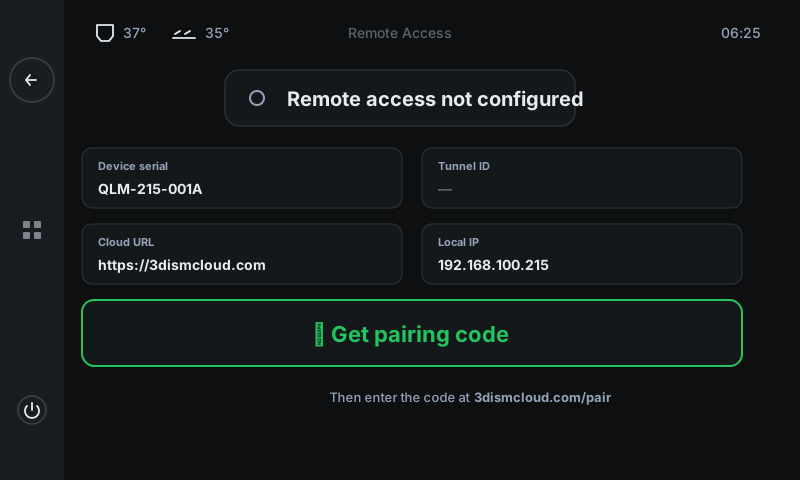
From the home screen tap WiFi or More → Remote Access. The status page shows whether the printer is already paired and surfaces the technical details (serial, tunnel ID, your LAN IP) in case you need them for support.
 123
123Status badge — Tells you whether the printer is already paired. 'Not configured' = no cloud link yet. 'Paired with you@example.com' = good to go.
Facts grid — Device serial (your printer's unique ID), Tunnel ID (set after pairing), Cloud URL, and the printer's LAN IP. Useful for support tickets.
Get pairing code — Contacts 3DISM Cloud and asks for a fresh 6-character code. Tap this to start the pairing.
Tap Get pairing code
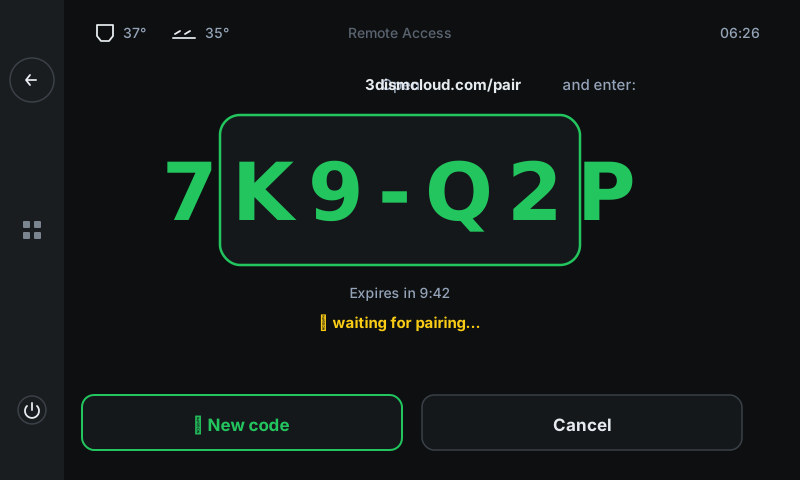
The printer asks 3DISM Cloud for a one-shot code and displays it in big green type on screen. The code is good for 10 minutes — don't dawdle. The panel waits patiently while you go to your phone or laptop and enter it.
 12345
12345The code — Type this into 3dismcloud.com/pair from any device on the internet. Letters are case-insensitive.
Countdown — Time left before this code expires. After it expires, tap 'New code' to get a fresh one.
Waiting status — Live indicator that the printer is checking the cloud once a second for a successful pairing. Goes green when you finish on the web side.
New code — Refresh the code if you've waited too long and it expired. The countdown resets to 10 minutes.
Cancel — Returns to the status page without pairing. Use this if you change your mind or want to try later.
Enter the code on the web
Open 3dismcloud.com/pair on your phone, tablet, or laptop. Sign in (or create a free account if you're new). Type the 6-character code from the printer, tap Pair.
The website confirms the pairing instantly. Back on the printer's LCD, the status page returns and now shows the tunnel ID + a green Paired badge.
Tip. The cloud account is free for up to 10 printers. Multiple printers can pair to the same account — useful if you have a small print farm.You're connected
Two things now work that didn't before:
• Email notifications. Every print start + finish (and any errors) gets an email to the address on your cloud account, with the filename and elapsed time.
• Remote monitoring. From any browser, sign into 3dismcloud.com and you'll see your printer's dashboard — live state, current job, last 10 prints.
To unpair, return to Remote Access and tap the badge — you'll get a confirm prompt before the tunnel drops.