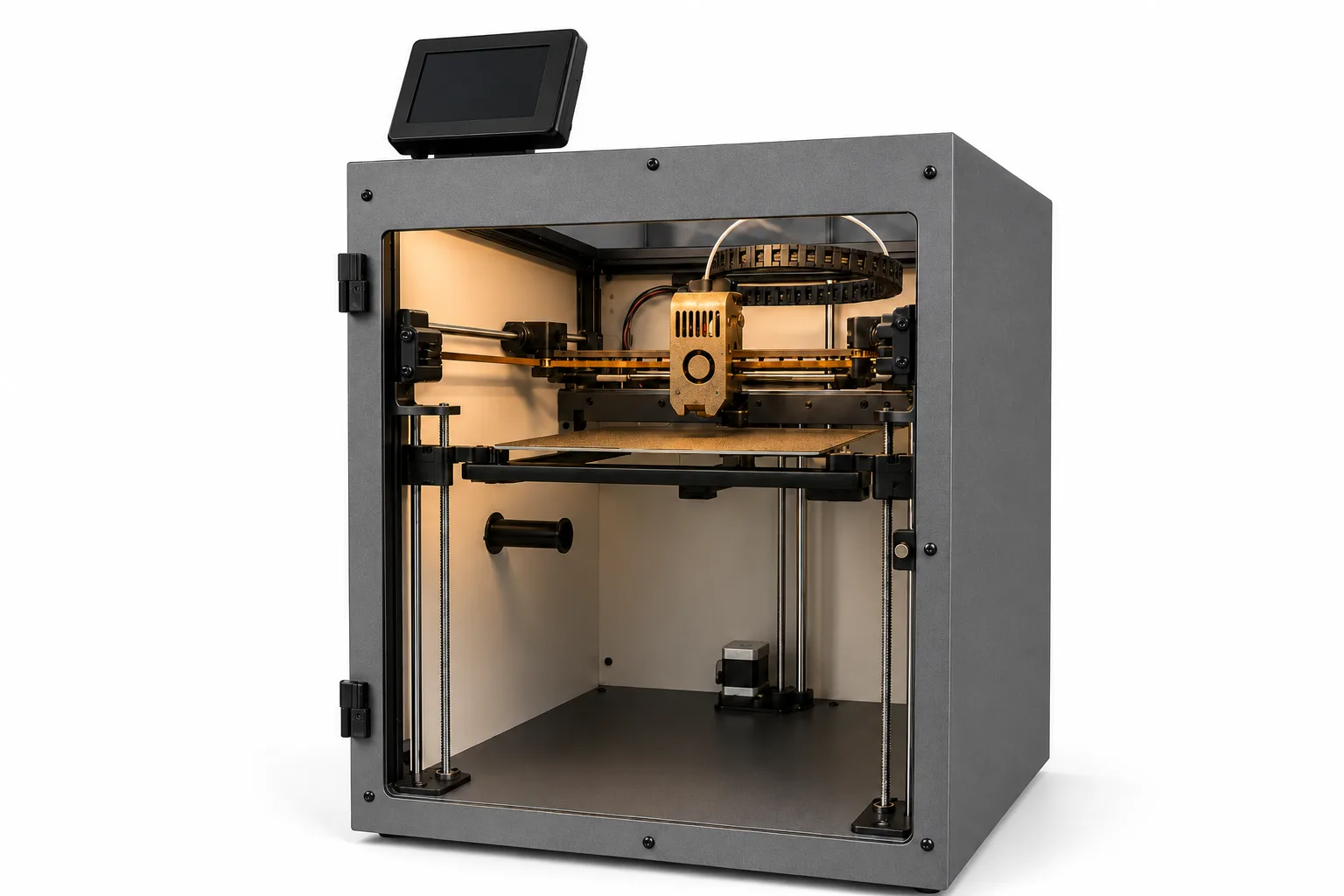
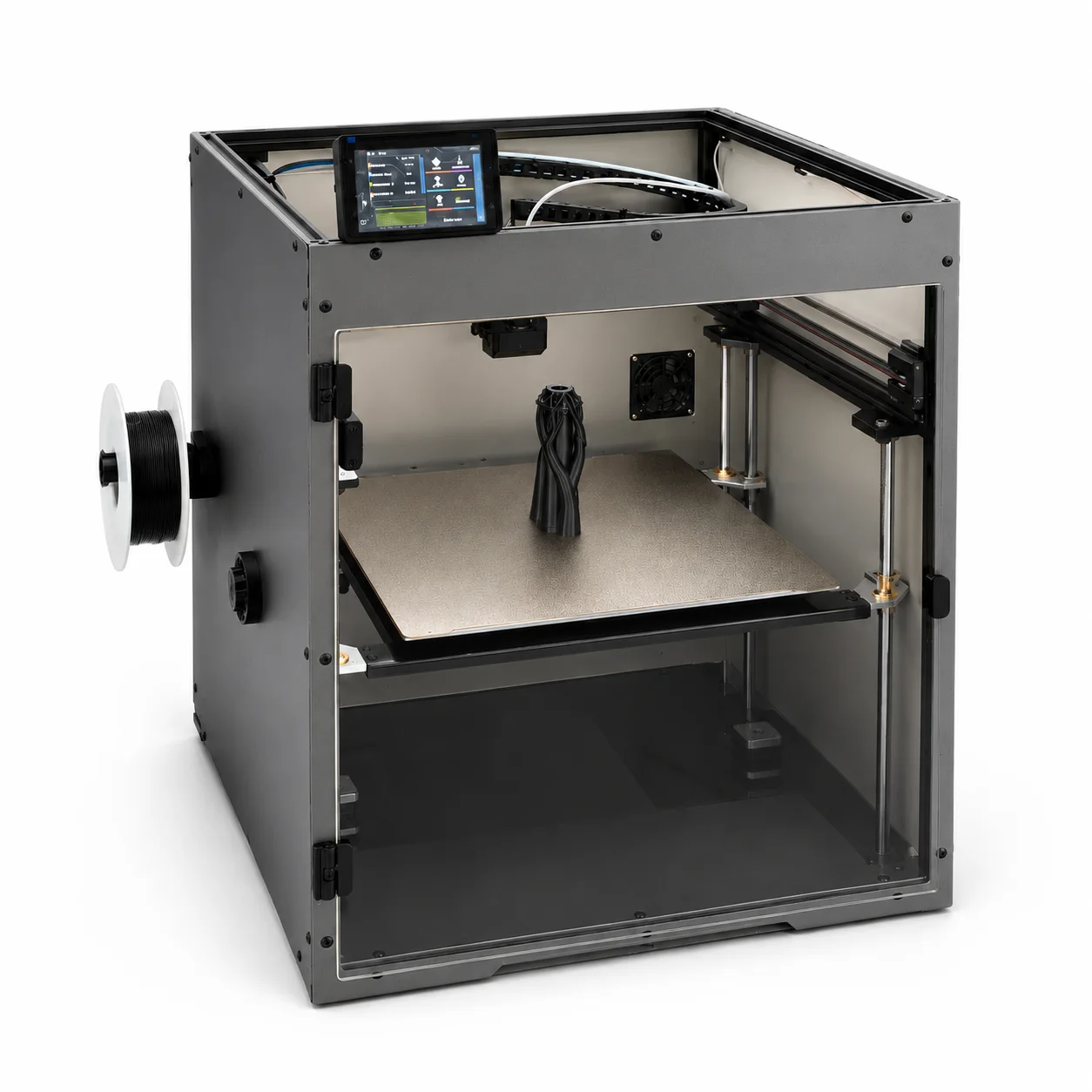
Software
Everything that runs your QALAM.
Tuned firmware on the machine, free remote monitoring in your browser, a step-by-step manual and ready-made slicer profiles — all included, nothing to pay for.
On the machine
Runs on 3DISM's own Klipper fork.
Every QALAM runs our own fork of Klipper on a full-HD touchscreen. Input shaping and pressure advance are dialled in on each unit before it ships, so you get fast, clean motion out of the box. Start jobs, watch live progress, tweak speed, flow and temperatures mid-print, load filament and level the bed — all from the screen, without opening a laptop.
Full-HD touchscreen — big, glanceable print status from across the room.
Klipper underneath — our fork, tuned per machine before it leaves us.
Everything in one place — print controls, temperatures, filament and maintenance, no menus buried in menus.
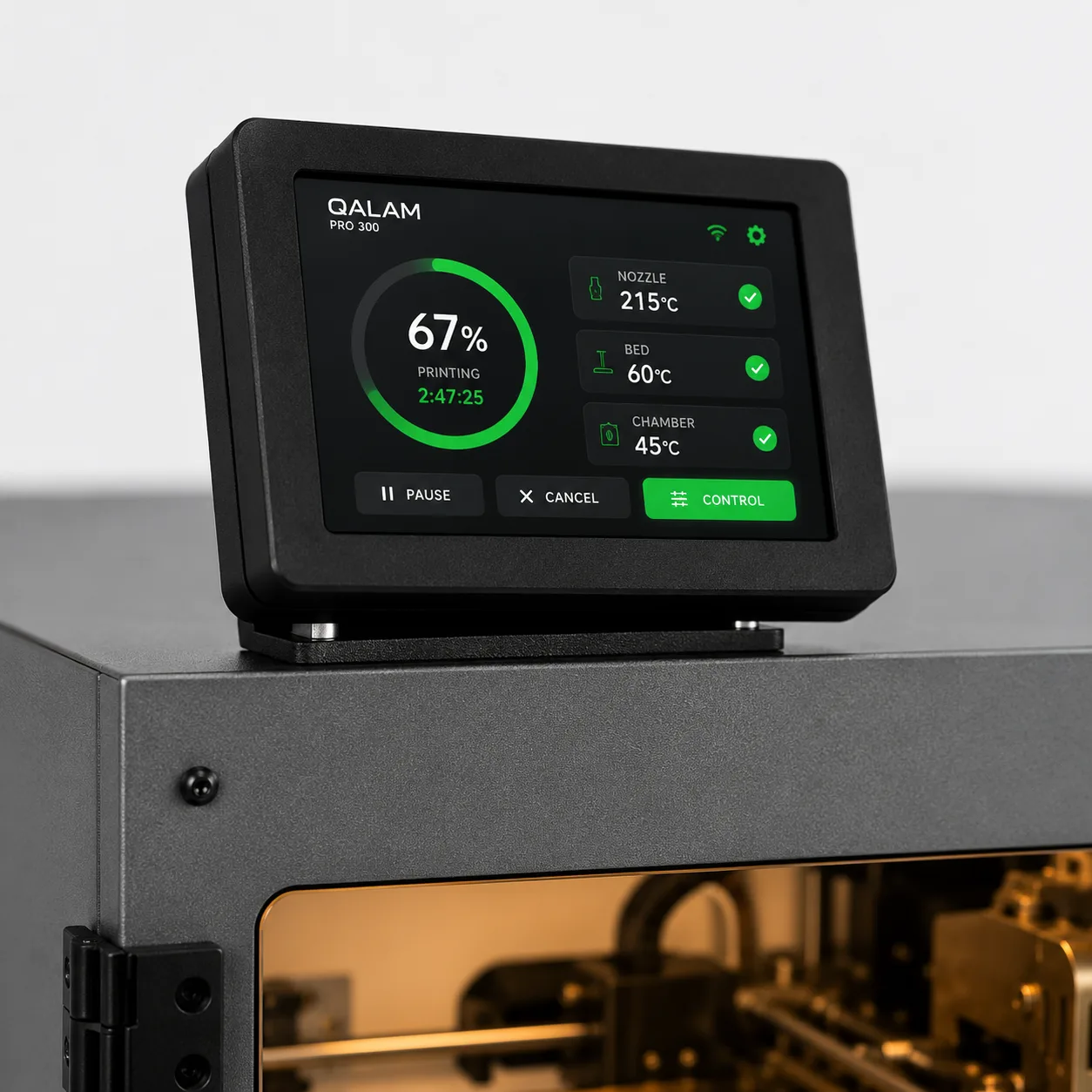
Remote monitoring
Watch every print from anywhere.
Remote monitoring lives on 3DISM Cloud — your printer in any browser. Check progress from the office, pause a job from home, or keep an eye on the whole workshop from one screen. The connection is outbound-only: no VPN and no port forwarding, just an on-screen pairing code. Free with every QALAM, for the life of the machine.
Free for life
No subscription, no tiers. Included with every QALAM.
Any browser
Phone, tablet or laptop — nothing to install.
Zero setup
No VPN, no port forwarding. Pair with an on-screen code.
Manual & guides
A manual that actually helps.
The user manual takes you from switching on to your first print, OrcaSlicer and calibration. The screen guide explains every screen on the touchscreen. The filament tuning guide covers the slicer side: getting a new filament to print well in OrcaSlicer. The troubleshooting guide explains the messages on the screen and has photo repair guides, starting with the extruder assembly.
- Safety first
- Wi‑Fi and remote access
- Your first print, step by step
- OrcaSlicer: profiles and sending prints
- Calibrating the printer
- Power-loss recovery
- Getting to know the screen
- Fine tuning a print while it runs
- The print screen
- Print Files
- Controls
- Settings and Machine Information
- Where to find it
- Temperature tower
- Max volumetric speed
- Pressure advance
- Flow ratio
- Retraction
- Part cooling fan
- Material starting points
- What you see, which test fixes it
- Repair guide: extruder assembly
- The printer has stopped: the fault page
- A print paused itself
- A command was refused
- Common questions
- Contacting 3DISM support
Downloads
Ready-tuned OrcaSlicer profiles.
One file per machine — the printer definition, our filament profiles and quality presets, all set up for you. Import it once and start slicing.
QALAM Pro 300
300 × 300 × 300 mm · OrcaSlicer
QALAM Pro 400
400 × 400 × 400 mm · OrcaSlicer
How to install
Download the .orca_printer bundle for your machine.
In OrcaSlicer, go to File → Import → Import Configs… and select the file.
Pick the imported 3DISM QALAM printer, then choose a quality preset (0.20 / 0.24 / 0.28 mm) and press print.
Imported in OrcaSlicer 2.4 and got no filaments or processes?
Our older downloads bring only the printer into OrcaSlicer 2.4 and newer. Remove that copy, then import the current download:
- In OrcaSlicer, open Help → Show Configuration Folder, then close OrcaSlicer.
- Open
user→default(or your account folder) →_local, and delete the folder whose name starts withoffline_3DISM QALAM(an older download from this page) or_3DISM QALAM(an older download from 3DISM Cloud). - Download the bundle again from this page and import it as in step 2.
Bundles are .orca_printer files for OrcaSlicer. On something else, or stuck on import? See the manual or message us on WhatsApp.
Standard on every QALAM.
Tuned firmware, free remote monitoring, the manual and slicer profiles — all in the box with the QALAM Pro 300 and Pro 400.